
Robertson AV Guides
Wireless Presentation Systems for BYOD Classrooms
By Robertson AV ·

In a bring-your-own-device (BYOD) classroom, the cable at the front of the room stops being the answer. The teacher’s laptop might be a Windows machine one day and a Chromebook the next, a student wants to show a project from an iPad, and a substitute arrives with a device nobody planned for. A wireless presentation system lets any of them put their screen on the classroom display without walking to the lectern or hunting for an adapter. This guide compares the main casting options, explains what each one asks of your network, and lists what to check before you buy for a room, a building or a district.
What a wireless presentation system actually does
A wireless presentation system takes the screen (or a window, app or video) from a personal device and shows it on a shared display or projector. Most systems have two parts:
- A receiver connected to the display, either a separate box, a function built into the display, or software running on a room PC.
- A sender, which might be the device’s built-in casting feature, an installed app, a browser page or a plug-in button.
The differences that matter in a classroom are which devices can connect without extra setup, how the connection travels over your network, and how much control the teacher has over who appears on screen.
The main casting options
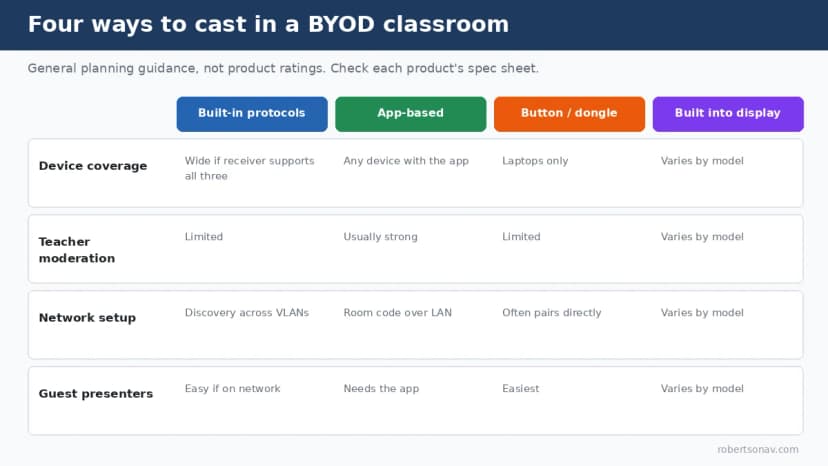
Built-in protocols: AirPlay, Miracast and Google Cast
The three protocols most devices already support are:
- AirPlay for Apple devices. Apple describes it as its technology for streaming and mirroring from Apple devices to Apple TV and AirPlay-compatible receivers. On an iPhone or iPad, users open Control Center and tap Screen Mirroring, and an on-screen passcode can be required to connect.
- Miracast for Windows and many Android devices. On Windows 11, Microsoft’s instructions are to press Windows logo key + K and pick a Miracast-capable display from the list.
- Google Cast for Chromebooks, Android and Chrome. Google’s Cast SDK is built around sending media from an app to a receiver, with the sending device acting as the remote. Tab and screen casting from Chrome work too, but behavior depends on the receiver.
The appeal is obvious: no app to install, and users already know the gesture. The catch is that a mixed fleet needs a receiver that supports all three, and each protocol discovers receivers differently, which is where classroom networks get tricky.
App-based systems
Many classroom receivers pair with an app or a browser page. The user enters a room code shown on the display, and the content travels over the school network to the receiver. App-based systems tend to offer the controls teachers actually ask for: approving who connects, showing several student screens side by side, and pushing the main display out to students’ devices. The trade-off is one more app for IT to deploy and keep updated.
Button or dongle-based systems
Some systems use a USB or USB-C button that plugs into the laptop and pairs directly with the room’s receiver. Press the button and the screen appears. Buttons are the simplest experience for guest presenters and staff who rarely present, and they can avoid a lot of network work because many pair directly with the base unit. They don’t help a student with a phone, so they usually sit alongside a protocol- or app-based option rather than replacing it.
Casting built into the display
Many interactive touch displays and commercial displays include a casting receiver. That removes a box from the wall, but check which protocols it supports, whether teachers can moderate connections, and how firmware updates are delivered. Our guide to ultra-short-throw projectors vs flat panels for classrooms covers the display decision itself.
What your network has to support
Most wireless presentation problems in schools are network problems. Raise these with IT before you choose hardware.
Discovery across VLANs and subnets
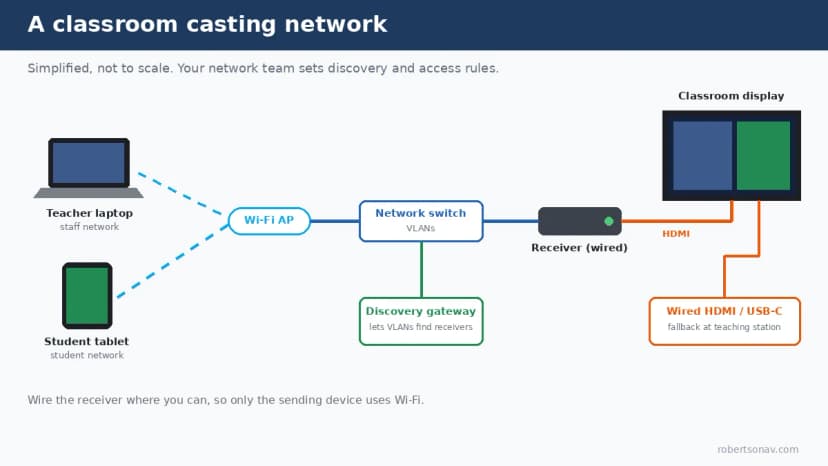
Schools often put staff devices, student devices and AV equipment on separate networks. Discovery protocols don’t always cross those boundaries. Apple explains that Bonjour, which Mac computers use to find AirPlay devices, relies on multicast traffic that is usually not routed across subnets, so larger networks use a Bonjour gateway or similar technology. Apple also notes that Apple TV advertises itself over Bluetooth Low Energy so nearby devices can connect over the existing network. Plan for discovery deliberately rather than hoping it works.
Miracast over the network
Standard Miracast creates a direct Wi-Fi connection between the device and the receiver. Microsoft also supports Miracast over Infrastructure, which sends the stream over the existing LAN instead. Microsoft lists requirements such as opening TCP port 7250, connecting through Ethernet or secured Wi-Fi, and making the receiver’s hostname resolvable through DNS. If those aren’t in place, Windows falls back to a direct Wi-Fi connection.
Wi-Fi capacity and wired receivers
Wherever possible, connect receivers by Ethernet so only the sending device uses Wi-Fi. Ask IT whether the room’s coverage was designed for a full class of devices; if not, adding or relocating wireless access points may matter more than the receiver you pick.
Guest and student access
Decide who should be able to cast. Common patterns are staff-only casting on the staff network, student casting with teacher approval, and a separate guest path (often a button) for visitors. Each pattern changes which network the receiver sits on.
Classroom features worth paying for
- Moderation. The teacher sees a request and chooses what goes on screen. This is the feature that keeps a BYOD room calm.
- Multiple screens at once. Two to four student screens side by side helps with peer review and group work.
- Room codes or PINs that change. Stops the next classroom from casting by accident.
- Audio routing. Video with sound needs a path from the receiver to the room speakers. If the room has voice amplification or ceiling speakers, confirm where the receiver’s audio goes.
- Touchback. On an interactive display, some systems let the teacher control the laptop from the touchscreen. Check that the receiver and display both support it.
- A wired fallback. Keep an HDMI or USB-C input at the teaching station. Wireless is convenient; a wired input is what saves a lesson when the network is down. An AV switch can combine the receiver and wired inputs into one display input.
- Central management. For more than a handful of rooms, remote firmware updates, naming and monitoring save a lot of walking.
Matching the system to the room
| Room | What usually works |
|---|---|
| Standard classroom, mixed devices | Receiver supporting AirPlay, Miracast and Google Cast, or an app with moderation, wired to the network, plus a wired HDMI fallback |
| Single-platform school (all Chromebooks or all iPads) | The matching native protocol, with discovery configured across the networks in use |
| Lecture hall or library | Moderated app-based system with audio into the room sound system |
| Staff meeting room | Button-based casting for visitors, plus native protocols for staff |
Small rooms used for meetings share a lot with huddle room AV setups, and projector rooms still need the basics from our Epson PowerLite 119W room planning checklist.
Pilot before you roll out
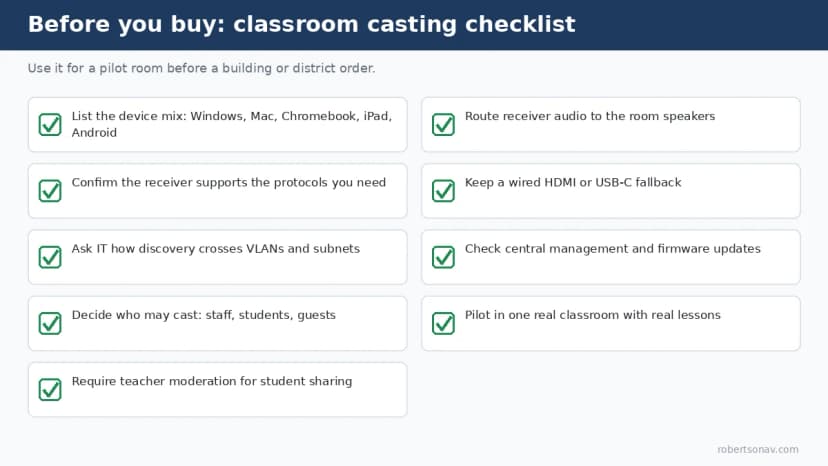
Install one system in a typical classroom and have teachers use it for real lessons for a couple of weeks. Test with the actual device mix, the actual networks, and a full-screen video with sound. Write down what IT had to change. That pilot turns a district-wide order into a known quantity.
Getting quotes and ordering
Browse our wireless collaboration category, or send us the room count, display type, device mix and network constraints through our quote request page. Our guide on how to request an AV quote that gets approved covers what to include. Shipping is free on all RobertsonAV orders within the United States, including oversized and heavy items. Schools can buy with a purchase order against a formal quote: email the PO to orders@robertsonav.com and reference your quote. Orders shipped outside Florida aren’t charged sales tax, and tax-exempt Florida buyers can submit their exemption certificate by logging in to their RobertsonAV account.
FAQ
What is a wireless presentation system?
It’s a receiver connected to a classroom display plus a way for devices to send their screen to it, such as AirPlay, Miracast, Google Cast, an app or a plug-in button. It replaces the cable at the front of the room.
Can one receiver handle iPads, Windows laptops and Chromebooks?
Some can. Look for a receiver that lists AirPlay, Miracast and Google Cast support, or one whose app runs on every platform you use.
Why can’t devices find the receiver on our school network?
Discovery often depends on multicast traffic that doesn’t cross subnets or VLANs by default. Your network team may need a discovery gateway or a configuration change so devices on one network can find receivers on another.
Should the receiver be on Wi-Fi or Ethernet?
Ethernet where you can. It keeps the receiver’s traffic off the classroom Wi-Fi, and some network-based casting modes require a wired or secured connection.
Do we still need an HDMI cable at the teaching station?
Yes. A wired input is the fallback when the network or a device misbehaves, and it’s the fastest way to connect a device the system doesn’t support.