
Robertson AV Guides
Huddle Room AV Setup: Checklist for Small Conference Rooms
By Robertson AV ·
A huddle room looks like the easy line on an AV project: four to six chairs, one display, a camera, done. In practice, small rooms produce plenty of meeting complaints. The laptop won’t share, the far seat can’t be heard, or the camera crops off the people closest to the screen. This huddle room AV setup checklist walks through the decisions in the order an integrator makes them, so the room works on its first call.
What counts as a huddle room
Microsoft’s Teams Rooms planning template lists a “Small” room at 16 by 16 feet for four to six people and a “Focus” room at 10 by 9 feet for two to four. Most huddle rooms fall between those and share three traits:
- Short viewing distances. Everyone sits a few steps from the display.
- Hard surfaces near the microphones. Glass, drywall and laminate reflect sound back at the mics.
- People bring their own laptops. Often there is no room PC, or guests skip it.
Huddle room AV setup step 1: size the display
Size the display from the farthest seat, not the wall. The long-standing 4/6/8 rule of thumb puts the farthest viewer no more than 6 times the image height away for slides, or 4 times for detailed content such as spreadsheets. Our projector screen size and seating distance guide explains the rule and the AVIXA standard designers now use for critical rooms. On a 16:9 display, image height is about 0.49 times the diagonal.
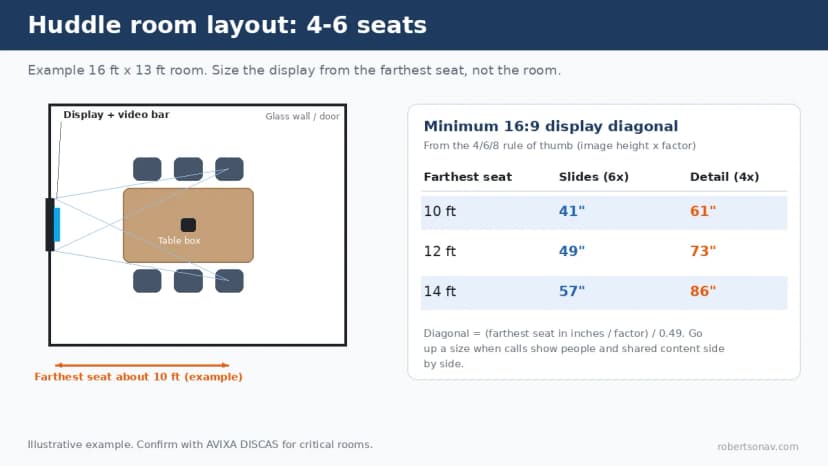
| Farthest seat | Minimum 16:9 diagonal, slides (6×) | Minimum 16:9 diagonal, detail (4×) |
|---|---|---|
| 10 ft | about 41″ | about 61″ |
| 12 ft | about 49″ | about 73″ |
| 14 ft | about 57″ | about 86″ |
Treat those as floors, not targets. Video calls usually split the screen between content and participant tiles, shrinking the content, so many integrators go up a size. Microsoft’s device selection guidance makes the same point: a 55-inch display can seem large, but Word or Excel content can end up too small for the people farthest away. The same page notes that while 4K displays are supported, Teams provides a maximum resolution of 1080p, so pay for size before resolution in a small room.
AVIXA’s display size explainer adds a reminder: display image size means the active image area showing the user’s content, not the size of the screen.
Consider duty rating, too. A room booked back to back all day is a different job from one used twice a week. Our commercial display vs consumer TV checklist covers duty ratings, control ports and VESA patterns.
Camera: field of view, auto-framing, USB vs HDMI
Field of view
In a small room, the hardest seats to capture are those closest to the camera. Microsoft’s guidance explains the trade-off: the wider the field of view, the less depth the camera can focus on accurately, and the narrower it is, the deeper into the room it can look. Pick a camera that captures everyone without being so wide that participants become tiny specks. Microsoft recommends placing cameras as near to eye level as possible and as centered as possible under the display.
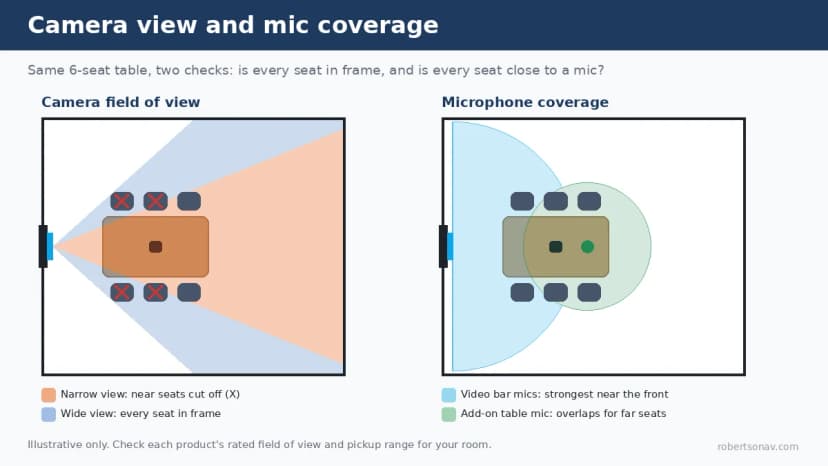
Check the camera’s rated horizontal field of view against the angle to the near chairs before ordering.
Auto-framing
Microsoft’s meeting room guidance for Teams notes that smaller rooms can often be covered by cameras built into all-in-one devices such as soundbars, which typically have a wide field of view, and that many feature intelligent framing to show the people in the meeting rather than empty chairs. For 4–6 seats, an all-in-one video bar with auto-framing is usually the simplest answer; see our conferencing video bars.
USB vs HDMI
- USB cameras and video bars are the default for huddle rooms. The computer sees them as a standard webcam and microphone, so they work with a room PC or a guest laptop on most meeting platforms.
- HDMI, SDI or network PTZ cameras suit larger rooms that need optical zoom or presets. They typically need a capture device or dedicated codec, complexity a small room rarely needs.
Passive USB cables are short. If the computer or table connection is far from the camera, plan an active USB extender before the walls close.
Microphones, speakers and acoustics
Remote participants judge the room by its audio. A video bar’s built-in mics usually cover the seats nearest the display well. If the far chairs sit noticeably farther away, add the manufacturer’s table microphone extension. For traditional meeting rooms, Microsoft’s room design article recommends placing microphones so no participant is more than a few feet from one, with overlapping coverage. Without a soundbar, it suggests speakers on either side of the display.
Acoustics decide whether those mics succeed. For its larger Signature Teams Rooms, Microsoft calls for acoustic treatment on at least two walls, a carpeted or treated floor and window treatments that can block outside light. The same physics apply in a huddle room:
- Add fabric-wrapped acoustic panels, especially opposite glass.
- Specify carpet or a rug under the table.
- Fit blinds, which also help the camera and display.
- Light faces evenly from the front, with no bright window behind the seats.
BYOD: USB-C, HDMI and wireless presentation
Decide first how meetings will run. A room system has its own compute and touch controller, while a bring-your-own-meeting room lets a laptop drive the call through the room’s camera, mics and display. Many rooms support both.
- USB-C at the table. One cable can carry video, the room’s USB camera and audio, and charging, but only if the laptop’s USB-C port supports video output. Also confirm the charging wattage the connection supplies.
- HDMI at the table. Keep one HDMI input for older laptops. The HDMI Licensing Administrator’s Premium HDMI Cable Certification Program tests cables for the full 18Gbps bandwidth and requires every length of every model line to be tested, so look for the certification label.
- Wireless presentation. Fewer cables, but it is network equipment, so involve IT early on how guests connect.
Cabling, power and network
Microsoft’s Signature Teams Rooms guidance calls for power and network at both the table and the equipment location. Plan the path between them first:
- A floor box or wall-to-table raceway, so cables never cross the floor.
- A table connection box or grommet for USB-C, HDMI and power.
- A recessed box behind the display for power, data and video bar cables.
- Wired network drops for the room system or video bar, plus a spare.
- Cable rated for in-wall or plenum use where code requires, labeled at both ends.
Mounting
Microsoft notes that the display wall must be strong enough to support the display’s weight. Confirm studs or add blocking, and match the mount to the display’s VESA pattern and weight. Set the display height so the camera underneath sits near seated eye level. Glass walls usually can’t take a mount, so use a floor stand or cart.
Huddle room AV setup checklist
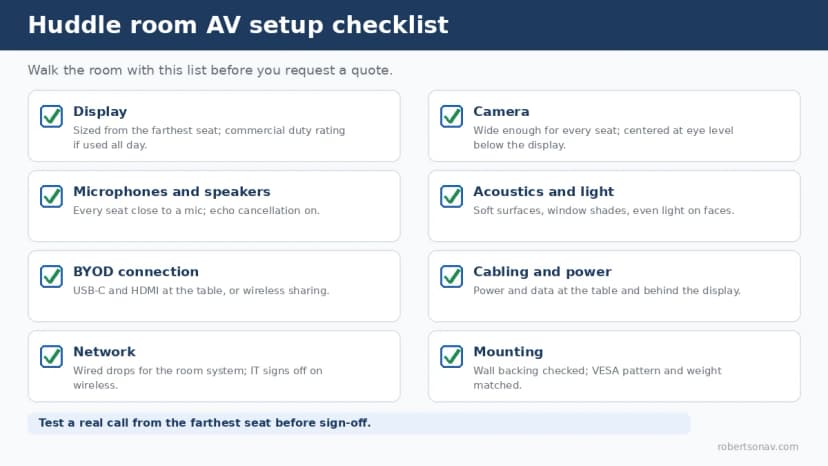
- Display sized from the farthest seat, with a suitable duty rating.
- Camera wide enough for the near chairs, centered at eye level.
- Microphones within a few feet of every seat.
- Acoustics and lighting: soft surfaces, shades, even front light.
- BYOD: USB-C, HDMI or wireless, tested with a guest laptop.
- Power and data at the table and behind the display.
- Network drops in place; wireless gear approved by IT.
- Mounting checked for wall strength, VESA pattern and weight.
Before sign-off, run a real call from the farthest seat.
Ready to price the room? Our guide on how to request an AV quote that gets approved shows what to include. Shipping is free on all RobertsonAV orders within the United States, including oversized and heavy items. Orders shipped outside Florida aren’t charged sales tax; Florida orders are taxed unless the buyer submits a valid tax-exemption certificate. Purchase orders are accepted against a formal quote, as explained in our guide to buying AV equipment with a purchase order. Net terms are available for eligible partners. Browse our televisions and monitors, or send your room dimensions and seat count through our quote request page.
FAQ
What size display do I need for a huddle room?
Measure to the farthest seat in inches, divide by 6 for slides or 4 for detailed content, then divide by 0.49 for the 16:9 diagonal. Go up a size if calls split the screen between content and people.
Is a video bar enough, or do I need a separate camera and mics?
For most 4–6 seat rooms, a wide-angle video bar with auto-framing is enough. Add a table mic extension if far seats sit beyond its coverage.
Should a huddle room camera be USB or HDMI?
USB, because any laptop or room PC sees it as a standard webcam. HDMI, SDI and network PTZ cameras fit larger rooms.
Can I use a consumer TV in a huddle room?
In a lightly used room, often yes. For all-day use or remote management, choose a commercial display with a published duty rating.
How do guests share content without a room PC?
Provide USB-C or HDMI at the table, or an IT-approved wireless presentation system, and test each with a laptop new to the room.