
Robertson AV Guides
Conference Room Camera Guide: Field of View, Auto-Framing and USB vs HDMI
By Robertson AV ·
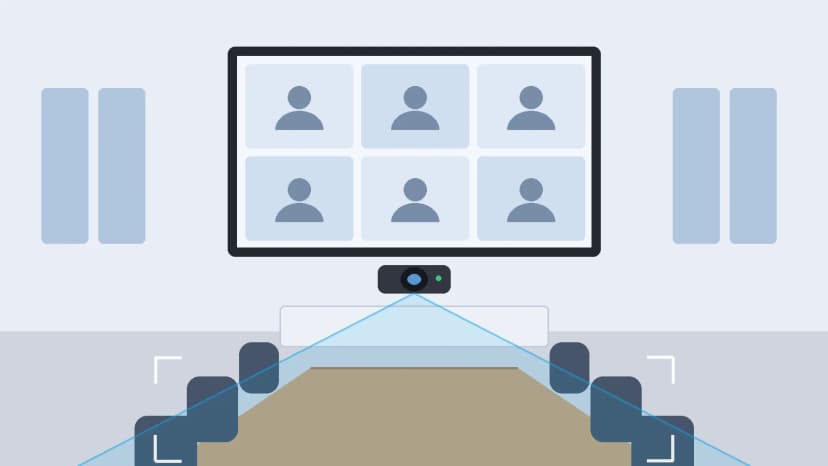
Remote participants judge a meeting room by two things: whether they can hear everyone and whether they can see everyone. The conference room camera handles the second job, and it fails in predictable ways. It crops off the people sitting closest to it, shows a sea of tiny faces in a long room, or sits so high that everyone appears as the top of a head. This guide covers how integrators choose a camera: work out the field of view the room needs, decide how much intelligence and zoom it needs, then choose the connection that fits the system.
Start with the room, not the camera
Microsoft’s device selection guidance for hybrid meetings lists the questions to answer before choosing a primary camera:
- How well will it handle the lighting in the room?
- Does it need pan, tilt and zoom, or can it be a static camera?
- What should its field of view be?
- Would a soundbar with an integrated camera do the job?
Before you look at products, sketch the room: where the display goes, where the table sits, how many chairs there are, and the distance from the display wall to the nearest and farthest seats. Every camera decision below comes from that sketch.
Field of view: the number that matters most
Field of view (FOV) is how wide an angle the camera captures, usually published as a horizontal or diagonal figure in degrees. The same Microsoft guidance explains the trade-off: the wider the field of view, the less depth the camera can focus on accurately, and the narrower it is, the deeper into the room it can look. The goal is a camera that captures every attendee without being so wide that people become “nothing more than tiny specks.”
You can estimate the minimum horizontal FOV with basic trigonometry. Take half the width of the seating, from the room’s centerline to the outside edge of the nearest chairs, and the distance from the camera to those chairs:
Minimum horizontal FOV = 2 × atan(half the seating width ÷ distance to the nearest seats)
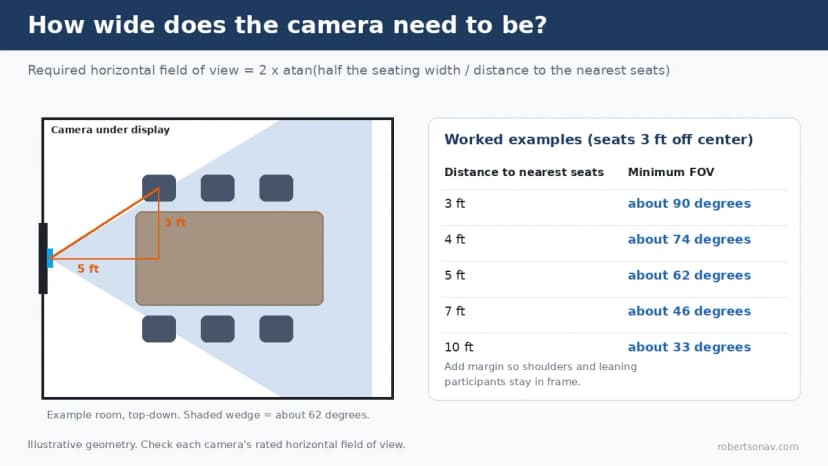
With chairs 3 ft off center, that works out to:
| Distance from camera to nearest seats | Minimum horizontal FOV |
|---|---|
| 3 ft | about 90° |
| 4 ft | about 74° |
| 5 ft | about 62° |
| 7 ft | about 46° |
| 10 ft | about 33° |
Two things stand out. First, the near seats set the requirement, so small rooms with chairs close to the display need the widest lenses. Second, moving the table a couple of feet back from the display wall can reduce the angle a lot. Add some margin on top of the math so shoulders and people leaning back stay in frame, and compare your result with the horizontal FOV on the spec sheet. A diagonal figure is wider than the horizontal one for the same lens.
Display size and camera position are linked, because the camera usually sits right under the screen. Our projector screen size and seating distance guide covers sizing the image from the farthest seat.
Auto-framing, speaker tracking and PTZ
Video bars and auto-framing
For small rooms, Microsoft’s Teams Rooms planning guidance notes that cameras built into all-in-one audio devices such as soundbars typically feature a wide field of view to capture every participant in a single shot. Many also offer intelligent framing, so the camera shows the people in the meeting rather than empty chairs. For focus and huddle rooms, a video bar with auto-framing is usually the simplest, most reliable choice; see our conferencing video bars.
PTZ cameras for larger rooms
As rooms get deeper, a single wide shot makes the back rows too small. The same Microsoft guidance says cameras for larger rooms can capture groups or focus on specific individuals at varying distances. That is the job of a pan-tilt-zoom (PTZ) camera. Look at:
- Optical zoom. It uses the lens to get closer, so detail holds up at the back of the room. Digital zoom crops the sensor image, so the more it zooms, the less detail is left.
- Presets. Saved positions such as “whole room,” “presenter” or “whiteboard” make operation one touch, often from the room’s control panel.
- Tracking. Some PTZ cameras follow the active speaker or a presenter automatically, which reduces the need for someone to drive the camera.
Browse our PTZ cameras for business meeting rooms.
Multi-camera rooms
For Signature Teams Boardrooms, Microsoft says one camera is not enough to capture every participant and calls for multiple cameras. It suggests a center front-of-room camera about 4 ft from the floor, or below the minimum display height, and side-mounted cameras at about 7 ft for a cross-room view. With Teams Rooms on Windows’ multiple camera view, remote participants can see up to four camera views at once.
USB vs HDMI vs SDI vs network cameras
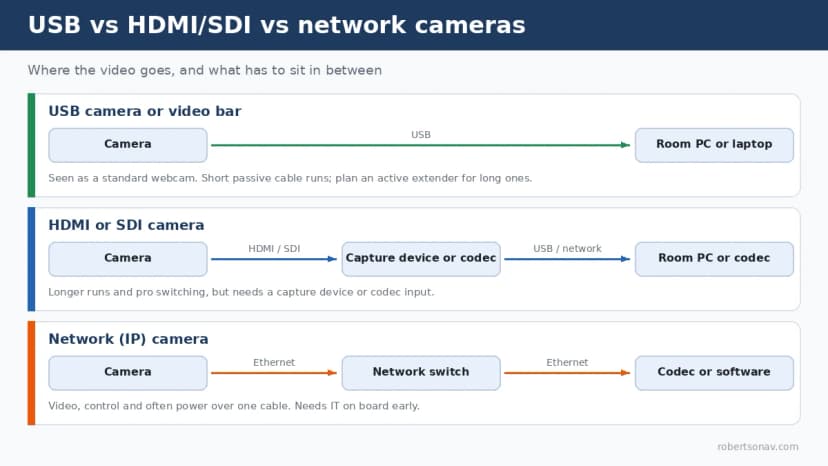
- USB. Most conference cameras and video bars follow the USB Video Class specification published by USB-IF (Video Class document set). That is why a room PC or a guest laptop usually sees them as a standard webcam. USB is the default for huddle and medium rooms. Passive USB cables are short, so plan an active USB extender if the computer sits far from the camera.
- HDMI or SDI. Common on PTZ cameras. These outputs suit longer runs, video switchers and recording or streaming systems, but the meeting software needs a capture device or a codec with matching inputs.
- Network (IP). The camera sends video and takes control commands over Ethernet, often with power over the same cable. It scales well to multi-camera rooms but sits on the corporate network, so bring IT in early.
Many PTZ cameras offer more than one of these outputs at the same time, which is useful when the same camera feeds a call and a recorder.
What about 4K?
Microsoft’s guidance notes that while 4K displays are supported, Teams provides a maximum resolution of 1080p. A higher-resolution sensor can still be useful, because auto-framing and digital zoom crop into the image, but don’t pay for 4K expecting a 4K call.
Placement and lighting
- Height and position. Microsoft recommends placing cameras as near to eye level as possible and as centered as possible under the display. A camera on top of a tall display looks down on everyone.
- Lighting. Light faces evenly from the front. A bright window behind the seats turns people into silhouettes, and Microsoft’s room guidance notes that window light can introduce glare and shadows to both the camera image and the display. Fit blinds or shades.
- Mounting. Use the camera’s bracket or a shelf under the display, and route power, USB or network cabling inside the wall before the drywall closes. If the display mount needs checking too, our commercial display vs consumer TV checklist covers VESA patterns and duty ratings.
- Platform certification. If the room runs Teams Rooms, check Microsoft’s certified systems and peripherals list before you buy. Other platforms keep similar lists.
Matching the camera to the room
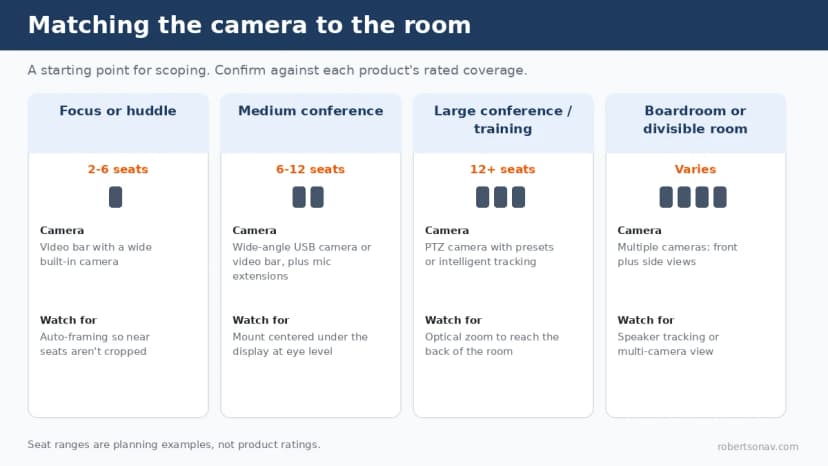
- Focus and huddle rooms: a video bar with a wide built-in camera and auto-framing.
- Medium conference rooms: a wide-angle USB camera or a video bar, with microphone extensions for far seats.
- Large conference and training rooms: a PTZ camera with optical zoom, presets or tracking.
- Boardrooms and divisible rooms: multiple cameras, with speaker tracking or multi-camera views.
Treat the seat ranges in the chart as planning examples. The room’s actual distances, worked through the FOV math, decide the final pick.
Get the room quoted
Send us the room sketch: dimensions, seat count, display size and the meeting platform. Our guide on how to request an AV quote that gets approved shows what to include. Shipping is free on all RobertsonAV orders within the United States, including oversized and heavy items. Orders shipped outside Florida aren’t charged sales tax; Florida orders are taxed unless the buyer submits a valid tax-exemption certificate, which tax-exempt buyers submit by logging in to their RobertsonAV account. Purchase orders are accepted against a formal quote, as explained in our guide to buying AV equipment with a purchase order. Net terms are available for eligible partners. Browse our video conferencing equipment, or send your room details through our quote request page.
FAQ
What field of view does a conference room camera need?
Enough to capture the nearest seats. Calculate 2 × atan(half the seating width ÷ distance to the nearest seats), add a margin, and compare it with the camera’s horizontal FOV.
Is a video bar good enough for a conference room?
For focus and huddle rooms, usually yes. Microsoft notes that small rooms can often be covered by cameras built into all-in-one devices. Deeper rooms usually need a separate wide or PTZ camera.
Should I choose a USB or HDMI conference camera?
USB for rooms run from a PC or guest laptops, because it appears as a standard webcam. HDMI, SDI or network outputs suit larger rooms with codecs, switchers or recording.
When do I need a PTZ camera?
When the room is deep enough that a wide shot makes the back rows too small, or when you need presets for a presenter or whiteboard.
Do I need a 4K conference room camera?
Not for 4K calls, since Teams sends a maximum of 1080p. A higher-resolution sensor can help when the camera crops in to frame people.
Where should the camera be mounted?
As close to seated eye level as possible and centered under the display, with no bright window behind the seats.