
Robertson AV Guides
Digital Signage Software and Media Players Explained
By Robertson AV ·

Every digital sign is three things working together: a display, a media player that turns files and web pages into a video signal, and software that decides what plays where and when. Buyers often focus on the display and find out late that the player can’t handle the content. This guide explains the digital signage media player options, the content management system (CMS) choices behind them, and how an integrator matches the two to a project.
The three parts of a signage system
- Display. A commercial panel rated for the hours it will run. Our commercial display vs consumer TV checklist covers duty rating, glare and control ports.
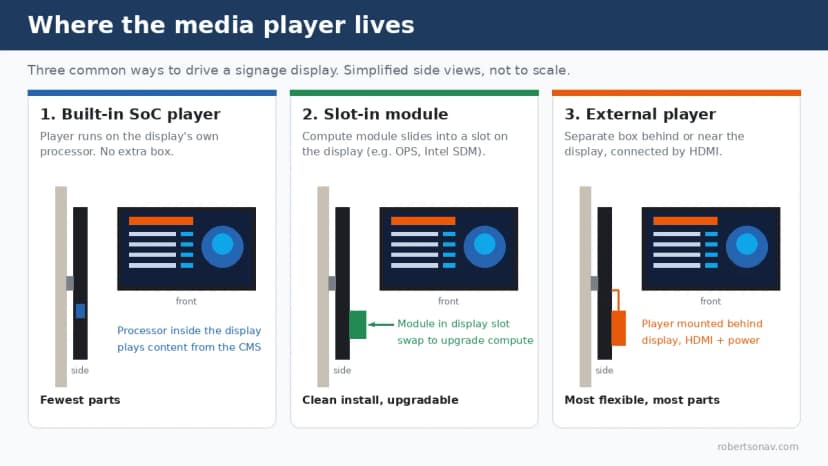
- Media player. The computer that stores content and renders it to the screen. It can live inside the display, slide into a slot on the display, or sit in a separate box.
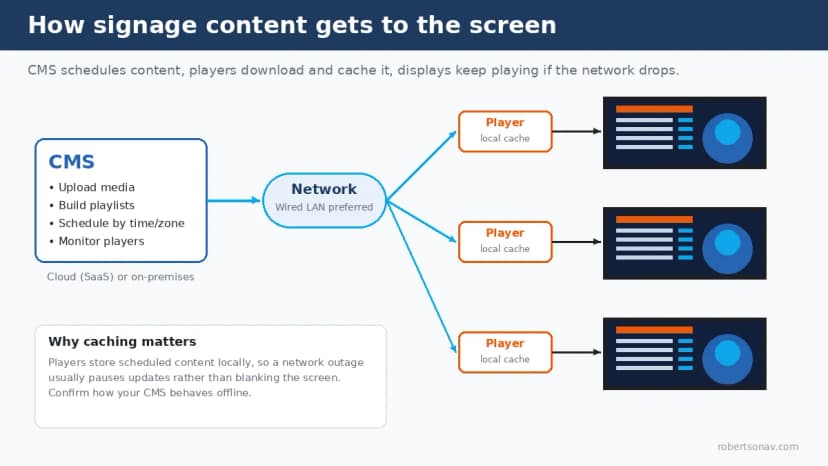
- CMS. The software where staff upload media, build playlists, schedule them by day and time, and check that every screen is online.
The player and the CMS have to be chosen together. Most CMS platforms support a specific list of player hardware and operating systems, and most players run only certain CMS software. Start with the content and the people who will manage it, then pick the pair that fits.
Media player options: SoC, slot-in and external
Built-in SoC players
Many commercial signage displays include a system-on-chip (SoC) player: the display’s own processor runs signage software or web apps with no extra hardware. Samsung’s developer site describes its standalone signage as a setup where users “just need to establish an internet connection to begin playing digital content from the content server,” and notes a Chromium web engine with HTML5 support on its Smart Signage platform.
Strengths: fewest parts, no box to mount or power, one device to warranty and manage, clean installs on thin walls.
Limits: processing power is fixed for the life of the display, the CMS must support that display’s platform, and heavy content (several video zones, high-resolution video, complex interactive apps) can push past what the built-in processor handles comfortably.
Slot-in players (OPS and Intel SDM)
Some displays have an expansion slot that accepts a compute module, so the player lives inside the display’s footprint but can be swapped out. The two common standards are the Open Pluggable Specification (OPS) and the newer Intel Smart Display Module. Intel says the Intel SDM specification delivers “the same level of intelligence and interoperability as the Open Pluggable Specification (OPS) but in a smaller form factor,” in a small 60 mm x 100 mm size and a large 175 mm x 100 mm size.
Strengths: no external box or HDMI cable, a full PC operating system when the content needs one, and an upgrade path: replace the module, keep the display.
Limits: the display must have the right slot type, and a module from one maker isn’t guaranteed to work in every other maker’s display. Confirm the exact display model on the module maker’s compatibility list, and check any operating temperature notes, since the module adds heat inside the display.
External media players
A dedicated signage player is a small box mounted behind the display, in a nearby cabinet or in a rack, connected by HDMI (or an HDBaseT extender for longer runs). Purpose-built players typically run a locked-down operating system designed to play content all day and recover on their own after a power loss.
Strengths: works with almost any display, including ones with no built-in player; choose the processing power the content needs; replace the player without touching the display.
Limits: more parts, another power outlet and cable to plan for, and a box that needs secure mounting where it won’t be unplugged or overheat in a tight recess.
PCs as players
A small form factor PC can run signage software too, and it makes sense for content that needs a full desktop application, such as live dashboards or custom kiosks. Plan to manage operating system updates, sleep settings and remote access so the screen doesn’t stop on a pop-up.
How to choose the right player
Work through these questions with whoever will own the content:
- What will play? Still images and a single video loop are light work. Multiple zones, 4K video, live data feeds, web dashboards and interactive touch apps are heavier.
- What resolution and orientation? A 4K display doesn’t need 4K content, but if you plan to run 4K video, confirm the player decodes the codec and resolution you’ll use. Portrait mounting has to be supported by both the player and the CMS.
- Is it interactive? Touch, sensors, card readers or barcode scanners usually push you toward an external player or slot-in PC.
- How many screens, and where? One lobby screen can live on a built-in player. A fleet across several sites benefits from one standard player model and one CMS.
- Will the display be replaced before the player, or the other way round? If you expect to upgrade content or software sooner than the panel, a slot-in or external player keeps that upgrade cheap.
- Where does the player physically go? Check depth behind the mount, airflow and service access before choosing an external box. Browse our media players to compare form factors.
Digital signage CMS options
Cloud (SaaS) CMS
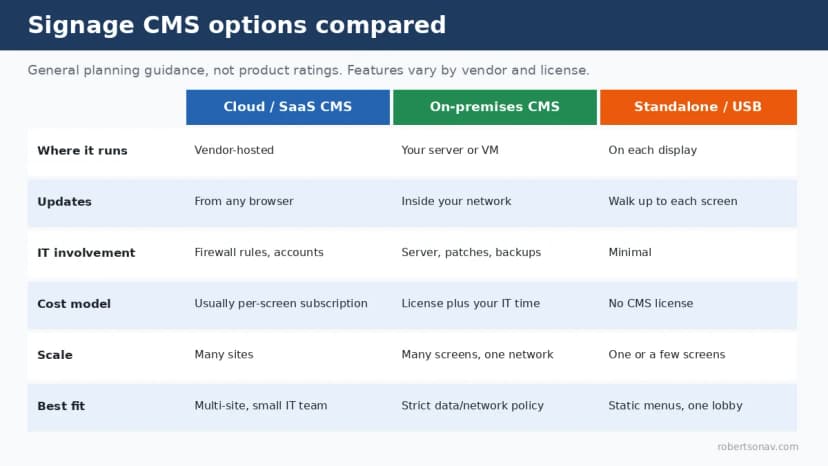
The vendor hosts the software and you manage screens from a browser. This is the usual choice for multi-site organizations and small IT teams. Licensing is commonly a per-screen subscription. IT will need to allow the players’ outbound connections through the firewall and decide who gets accounts.
On-premises CMS
The CMS runs on your own server or virtual machine. Organizations with strict data or network policies sometimes require this. You get full control of where content and logs live, and you take on server maintenance, patching and backups.
Standalone playback
Some displays and players can loop content from USB storage or internal memory with no CMS at all. It suits a single menu board or a lobby loop that rarely changes, but every update means visiting each screen.
What to check in any CMS
- Supported players and operating systems, including the specific display platform if you plan to use a built-in SoC.
- Scheduling by day, time and location, plus emergency or priority messages if you need them.
- Offline behavior: how much content the player caches and what the screen shows if the network drops.
- Device monitoring and alerts, so someone knows a screen is dark before a customer does.
- User roles, so a store manager can change a menu without access to every screen.
Network, power and control planning
- Use wired Ethernet where you can. Wi-Fi works, but a cable is easier to support for screens that run all day. Ask IT about a separate network segment for signage players.
- Put power and data in the right place. For external players, plan an outlet and network drop behind the display, not just one for the display.
- Plan scheduling and on/off control. Decide whether the CMS, the display’s own timer or a control system turns screens on and off, so they aren’t fighting each other.
- Document everything. Record each player’s location, network address and CMS account at handover.
Ordering signage hardware
Send us the number of screens, sizes, orientation, content types, CMS preference and where each player will mount, and we’ll quote matching displays, players and mounts. Browse digital signage or use our quote request page; our guide on how to request an AV quote that gets approved shows what to include. Shipping is free on all RobertsonAV orders within the United States, including oversized and heavy items. Some items require a scheduled delivery, and the carrier will contact you to arrange a delivery window; if your site needs liftgate or inside delivery, mention it on your quote request. Purchase orders are accepted against a formal quote: email your PO to orders@robertsonav.com and reference your quote.
Planning a multi-screen install? See our video wall planning guide.
FAQ
What is a digital signage media player?
It’s the computer that stores signage content and renders it to the display. It can be built into the display (an SoC player), slotted into the display (OPS or Intel SDM module) or connected externally by HDMI.
Do I need a separate media player if my display has a built-in SoC?
Not always. If your CMS supports the display’s platform and the content is images, video loops or simple web content, the built-in player may be enough. Add a slot-in or external player for heavy multi-zone video, interactive apps or a CMS that doesn’t support the display.
What is the difference between OPS and Intel SDM?
Both are slot-in standards for putting a compute module inside a display. Intel SDM is the newer, smaller form factor. The display must have the matching slot, so check compatibility for the exact model.
Is a cloud or on-premises CMS better?
Cloud is simpler for multi-site fleets and small IT teams. On-premises suits organizations that must keep content and device data on their own network and can maintain a server.
What happens to the signs if the internet goes down?
Most networked players cache scheduled content locally and keep playing, but updates stop until the connection returns. Confirm the offline behavior of your specific CMS and player before you commit.