
Robertson AV Guides
Projector Maintenance: Filters, Lamps, and Cleaning
By Robertson AV ·

Most projector problems that land on a facilities ticket start as maintenance that slipped: a filter nobody checked, a lamp warning someone cleared without replacing the lamp, a lens wiped with glass cleaner. Projector maintenance isn’t complicated, but a ceiling-mounted unit is easy to forget until the image goes dim mid-meeting. This guide gives facilities and IT teams a practical schedule for filters, lamps and cleaning, the mistakes that shorten projector life, and a checklist you can hand to whoever owns the ladder.
Why projector maintenance is worth scheduling
A projector pulls room air across hot internal parts to keep them cool. When the intake filter clogs, the projector runs hotter, fans work harder and, on many models, a warning appears. ProjectorCentral’s school projector cost of ownership guide puts it plainly: many projectors will show an error if a clogged filter is impeding air flow, but don’t wait for the warning, because damage is already being done. Its advice is to examine, clean or replace the filter every year.
Lamps are the other half of the job. Lamp-based projectors lose brightness as the lamp ages, and running a lamp past its replacement warning carries real risk. If you’re still weighing lamp against laser for new rooms, our laser vs lamp projector cost of ownership guide prices out the maintenance difference over five years.
Filters: check, clean, replace
LCD-based projectors typically have a user-replaceable air filter behind a small cover. Epson’s air filter guidance for the PowerLite 119W is a good model for most units:
- Clean the filter and vents when they get dusty or when the projector shows a cleaning message.
- Power down first. Turn the projector off and unplug it before opening the filter cover.
- Use a small computer vacuum or a very soft brush. You can remove the filter to clean both sides.
- Never rinse it or use detergent or solvent, and don’t use canned air. Epson warns the gases can leave a flammable residue or push dust into the optics.
- Replace the filter if it’s torn or damaged, or if the cleaning message persists after you clean it.
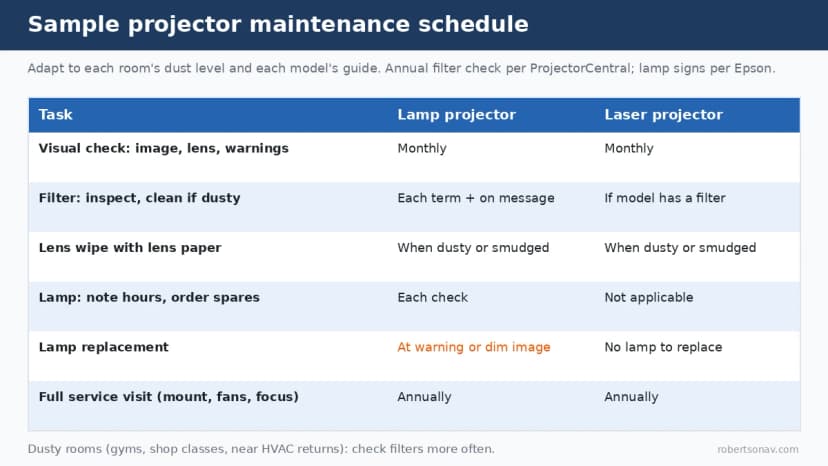
Many filters can be swapped while the projector stays on its ceiling mount. Rooms near shop classes, gyms, construction zones or HVAC returns collect dust faster, so check them more often than the annual minimum. Some laser projectors use sealed optical paths with no filter, while others still have one, so confirm on each spec sheet rather than assuming.
Lamps: watch the hours and the warnings
Lamp life depends heavily on the power mode. Epson’s lamp specifications for the PowerLite 119W family list the 119W at up to about 8,000 hours in high power mode, about 10,000 in medium and about 17,000 in ECO mode, with a note that lamp life varies with mode, environment and usage, and that brightness decreases over time. Running rooms in ECO mode where the image is still bright enough is one of the easiest ways to stretch lamp budgets. Our projector lumens guide helps you judge how much brightness a room really needs.
Epson’s user’s guide says to replace the lamp as soon as possible when the image gets darker or starts to deteriorate, when a replace-lamp message appears at startup, or when the lamp and power lights flash a warning pattern. It cautions that continuing to use a lamp after those signs increases the chance it may explode, and recommends keeping a spare lamp ready. Other manufacturers give similar warnings, so read the guide for each model you support.
Replacing a lamp safely
- Turn off and unplug the projector, then let it cool for at least one hour. Epson warns to let the lamp fully cool to avoid injury.
- Handle the new lamp by its housing. Never touch the bulb with bare hands; skin oil can shorten lamp life. Use a cloth or glove.
- Follow the model’s steps for the lamp cover and screws. Many units allow a lamp change while ceiling-mounted.
- Reset the lamp timer in the projector menu after the new lamp is in, so the hour count and warnings stay accurate. Don’t reset it without replacing the lamp.
- Dispose of the old lamp properly. Projector lamps typically contain mercury; Epson’s guide says to consult state and local regulations for disposal or recycling and not to put lamps in the trash.
Use the exact replacement lamp listed for the projector model. You can browse projector replacement lamps or send us your model list for a quote. Epson also advises against repeatedly turning the projector on and off, since that can shorten lamp life, so set a sensible auto-off schedule rather than having staff toggle power between classes.

Cleaning the lens and case
A smudged lens softens the image and is easy to mistake for a focus problem. Epson’s lens cleaning guidance is to clean periodically or whenever you see dust or smudges:
- Wipe gently with lens-cleaning paper to remove dust.
- For stubborn smudges, moisten a soft, lint-free cloth with lens cleaner and wipe gently. Don’t spray liquid directly on the lens.
- Don’t use glass cleaner, harsh materials or canned air, and never use a lens cleaner containing flammable gas, because the lamp’s heat may cause a fire.
For the case, Epson recommends a soft, dry, lint-free cloth, or a cloth lightly dampened with water and mild soap for stubborn dirt, with the projector unplugged. Avoid wax, alcohol, thinners and other chemicals.
The annual service visit
Once a year, ideally during a break when rooms are empty, give every projector a full service pass. ProjectorCentral’s checklist covers the essentials, and we’d add a few items that come up on installs:
- Dust the lens, intake and exhaust vents, and cables.
- Check the filter, if it has one, and clean or replace it.
- Confirm the mount’s fittings are tight and the projector is stable.
- Note lamp hours from the menu and order lamps for units approaching their rated life.
- Check brightness and color by eye against a known test image; replace a dim lamp.
- Listen to the fans and feel the exhaust for anything unusual.
- Re-aim, refocus and zoom the image to the screen. Our throw distance guide helps if the image no longer fills the screen.
- Test remote batteries, wall switches, and any control or network connection.
Networked projectors can make this easier. Many models, including the Epson 119W family, can send an email alert over the network when there’s a problem, and some can be monitored from a web browser. If your projectors are on the network, turning on alerts means a filter or lamp warning reaches IT before a teacher or presenter reports it.

Keep a maintenance log and spare stock
For campuses or offices with more than a handful of projectors, a simple spreadsheet pays off: room, projector model, install date, filter type, lamp model, lamp hours at each check and the date of the last service. It shows which lamps to order before next term. Keep at least one spare lamp and filter on hand for each model you support, as Epson recommends for lamps.
When a unit is near the end of its life, the log also gives you the data to plan replacements. Our Epson PowerLite 119W room planning checklist and Epson 4K PRO-UHD guide cover common next steps, and you can browse projectors and projector mounts for refresh projects.
Ordering lamps and replacement projectors
Send us your projector models and quantities through our quote request page, and see how to request an AV quote that gets approved for what to include. Shipping is free on all RobertsonAV orders within the United States, including oversized and heavy items. Organizations can buy with a purchase order against a formal quote: email the PO to orders@robertsonav.com and reference your quote. Net terms are available for eligible partners. Orders shipped outside Florida aren’t charged sales tax, and tax-exempt Florida buyers can submit their exemption certificate by logging in to their RobertsonAV account.
FAQ
How often should a projector filter be cleaned?
Clean it whenever it looks dusty or the projector shows a cleaning message, and examine it at least once a year. Rooms with more dust, such as gyms or shop classes, need more frequent checks.
Can I wash a projector air filter?
Not on Epson models like the 119W. Epson says not to rinse the filter or use detergent or solvent; use a small computer vacuum or soft brush, and replace the filter if it’s damaged or dust won’t come out.
When should I replace a projector lamp?
As soon as the image dims noticeably, a replace-lamp message appears, or the warning lights flash. Don’t keep running a lamp past its warning, and reset the lamp timer after you install the new one.
How long does a projector lamp last?
It depends on the model and power mode. Epson rates the PowerLite 119W lamp at up to about 8,000 hours in high power mode and about 17,000 hours in ECO mode, and actual life varies with environment and usage.
Can I use canned air to clean a projector?
Epson advises against it for the lens, filter and case, because the gases can leave a residue or push dust into the optics. Use a soft brush, computer vacuum or lens-cleaning paper instead.
Do laser projectors need maintenance?
They don’t need lamp changes, but some still have filters to clean, and every projector benefits from lens cleaning, vent checks and an annual mount and alignment check.