
Robertson AV Guides
Interactive Flat Panel Buying Guide for Schools
By Robertson AV ·

An interactive flat panel is a self-contained teaching surface: a commercial display, a touch layer, speakers and usually a computer in one chassis. That convenience is why schools buy them — and why a bad spec is expensive to live with. This guide covers sizing, touch and operating-system choices, carts and wall mounts, and when a panel is the wrong tool compared with an ultra-short-throw projector.
If you are still choosing between a panel and a projection surface, start with classroom display planning: ultra short throw vs flat panel. Size still follows the farthest designed seat; our commercial display sizes guide uses the same 4/6/8 distance method you should apply in a classroom.
Size the panel from the back row, not the catalog
A 75-inch or 86-inch diagonal is not automatically "classroom sized." Start from the farthest student who must read ordinary text, then work back to a diagonal and a mounting height. Dense worksheets need a taller image, or closer seats, than a simple video clip. If even an 86-inch panel fails the back row, consider a larger projected image rather than stacking two panels as an afterthought. Shades, window placement and anti-glare glass do more for readability than adding one more inch of diagonal. For commercial versus consumer panels, see the commercial display vs consumer TV buyer's checklist.
Touch: compare the datasheet, not the brochure headline
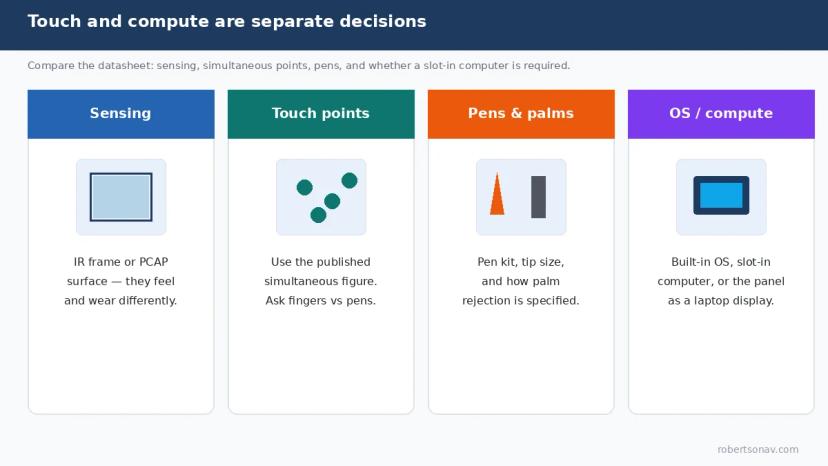
Touch performance is a system: the sensing technology, the number of simultaneous points, palm rejection, pens, and the glass. Infrared (IR) frames and projected capacitive (PCAP) surfaces are both common on education panels. They feel different, they tolerate dust and damage differently, and they are not interchangeable by a single "points of touch" number.
Do not invent a standard. Read the published figure for simultaneous touch points, and ask whether that number is for fingers, pens, or both. Ask how palm rejection is specified, whether the panel ships with pens, and whether object recognition or a trailing-object mode is documented. If students will write for long stretches, a dedicated pen with a fine tip is as important as the headline point count. Confirm that the touch layer is covered by the warranty in the same terms as the LCD, and for how long.
Ultra-short-throw interactive projectors use a different approach: pens and, on some models, finger touch on the projected image. Our UST planning guide cites Epson's published figures for the BrightLink 725Wi, including dual-user pen and finger touch with up to six touch points. That is a useful comparison point, not a reason to treat every interactive surface as equivalent. If you go the UST route, mounting geometry and board flatness become part of the product; see also projector mounts: ceiling, wall, and short-throw arms.
Operating system and the computer inside the panel
Most school panels run a built-in operating system, accept a slot-in computer (often an OPS or similar module), or both. The built-in OS is typically a locked-down environment with a whiteboard app and screen sharing. A Windows module gives teachers a familiar desktop image. Some rooms standardize on Chrome devices and only need the panel as a display and touch surface.
Specify the teaching model first. If lessons live in a cloud suite and the built-in whiteboard is the main tool, a well-supported onboard OS can be enough. If teachers must run a district desktop image, budget the slot-in computer, its license, and a replacement plan when that OS falls out of support. Ask what the panel can still do if the module is removed — HDMI input, touch-out to a laptop, and a usable whiteboard matter on that day. Fleet enrollment and updates belong in the same conversation, and wireless presentation should be a planned input. See wireless presentation systems for BYOD classrooms.
Audio, sources, and the rest of the room
Built-in speakers are a convenience, not a classroom audio design. In a typical room they may be adequate for program sound; they are rarely a substitute for voice lift when the goal is every student hearing the teacher clearly. If intelligibility is the problem, plan a classroom audio or soundfield system rather than turning the panel volume up.
List the sources the panel must accept on day one: teacher laptop, document camera, wireless share, maybe a room PC. Confirm the number of HDMI inputs, whether USB-C is available and what it carries (video, touch, charging), and how touch is sent back to a guest laptop. One unused USB port is not a substitute for a documented touch-out path.
Wall mount or cart: treat it as part of the product
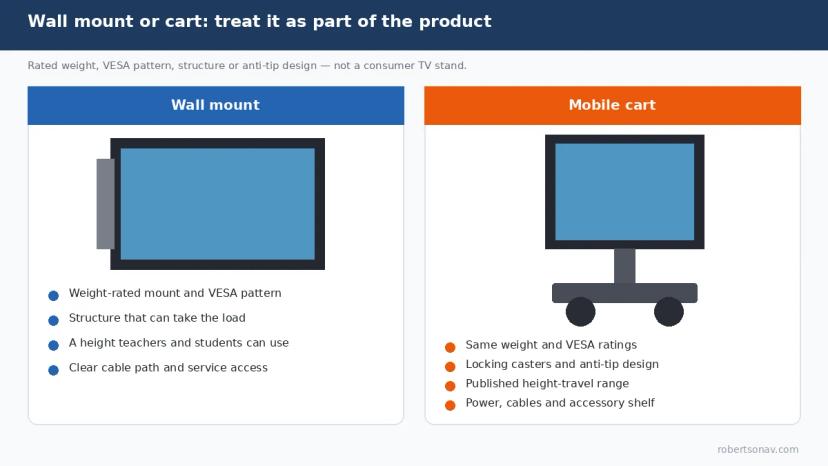
A wall-mounted panel needs a mount rated for its weight and VESA pattern, fixed to a structure that can take that load, at a usable height. A moving panel needs a cart rated for the same weight and pattern, with locking casters and a documented anti-tip design. Use the manufacturer's cart or a cart whose published ratings cover your exact panel — not a consumer TV stand under an 86-inch chassis. Include power, cable management and any document-camera shelf in the quote. If standing teachers and seated students will both write on the glass, confirm the cart's travel range on the datasheet. Browse interactive touch displays, flat wall mounts and cart mounts after size, OS and mounting style are decided.
When a panel is the wrong tool
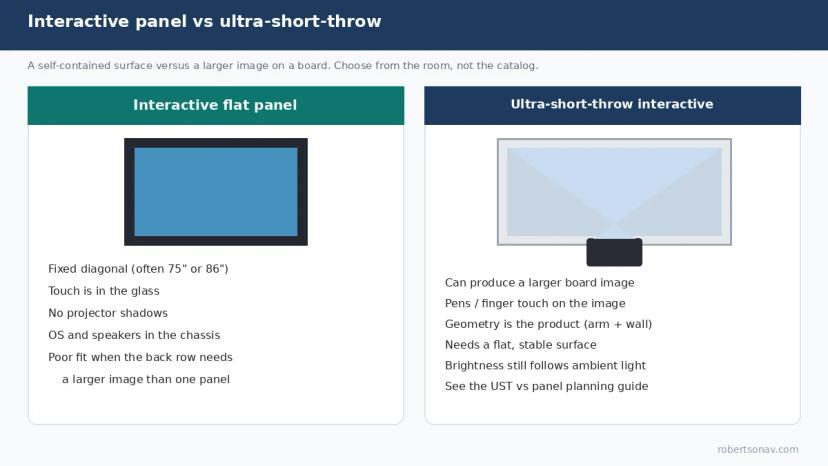
Interactive panels excel when you want a self-contained surface, consistent brightness in a lit room, and touch that does not depend on a calibrated projector. They are a poor fit when the farthest seat needs an image larger than a single panel can reasonably provide, when you want a writable surface much larger than 86 inches, or when a recessed markerboard wall is already the right place for a UST image. The UST versus panel guide walks through throw, brightness and shadows for that choice. Neither tool replaces a plan for teacher voice, student devices or how the room is scheduled.
What to send with a quote request
- Room depth, the farthest designed viewing seat, and the wall or cart location.
- Desired diagonal, or a request to size from those distances.
- Touch expectations: pens, finger touch, simultaneous users, and any required applications.
- OS and compute: built-in OS only, a slot-in Windows or other module, or the panel as a display for teacher laptops.
- Inputs: HDMI, USB-C, document camera, wireless share, and touch-out to a laptop.
- Mount: wall, mobile cart, or both, including height-adjustment needs.
- Delivery notes. Large-format displays ship by freight on a pallet, typically curbside, and the carrier schedules a delivery window. If you need liftgate or inside delivery, say so on the quote request.
For the paperwork side of a school or district purchase, see how to request an AV quote that gets approved and buying AV equipment with a purchase order.
FAQ
What size interactive panel should a classroom use?
Start from the farthest student who must read ordinary text, then choose a diagonal that passes a seat-based method such as the 4/6/8 rule in our display sizing guide. A 75-inch or 86-inch panel is common, but it is not a substitute for measuring the room.
How many touch points do I need?
There is no universal number. Compare the manufacturer's published simultaneous-touch figure, and ask whether it applies to fingers, pens or both, and how palm rejection is specified. If several students will write at once, that published figure and the pen kit matter more than a brochure adjective.
Do we need a Windows computer in the panel?
Only if teachers must run a desktop image or applications the built-in OS cannot support. Many rooms teach from laptops and a whiteboard app on the built-in OS. If you do add a slot-in computer, plan licenses, management and replacement when that OS reaches end of support.
Is an interactive panel better than an ultra-short-throw projector?
It depends on image size, the wall you have, and how you want to write. Panels are self-contained; UST can produce a larger image on a board surface. Work through the UST versus flat panel guide before you standardize a school on one or the other.
Can we move the panel between rooms?
Yes, if you specify a cart rated for the panel's weight and VESA pattern, with locking casters and a documented anti-tip design. Include power, cable management and any document-camera shelf in that same quote.
Can RobertsonAV quote interactive panels for a school?
Yes. Send room depths or seat distances, the preferred diagonal, touch and OS needs, and whether you want a wall mount or a cart, through a quote request. Shipping is free on all RobertsonAV orders within the United States, including oversized and heavy items. Large-format displays ship by freight on a pallet, typically curbside, and the carrier schedules a delivery window. If you need liftgate or inside delivery, mention it on your quote request. Orders outside Florida have no sales tax; Florida orders are taxed unless you submit a tax-exemption certificate by logging into your RobertsonAV account. Net terms are available for eligible partners. Purchase orders are accepted against a formal quote and should be emailed to orders@robertsonav.com with a reference to your quote.